A funeral service has many moving parts. There is the opening prayer, the welcome, the music, the tributes, the eulogies, the committal — and someone needs to keep all of it on track, in the right order, on time. TributePoint's Programme Builder gives you a digital order of service that the director controls and the entire audience can follow live on their phones. No printed booklets. No confusion. Just a dignified, well-run service.

Why a Digital Programme Makes a Difference
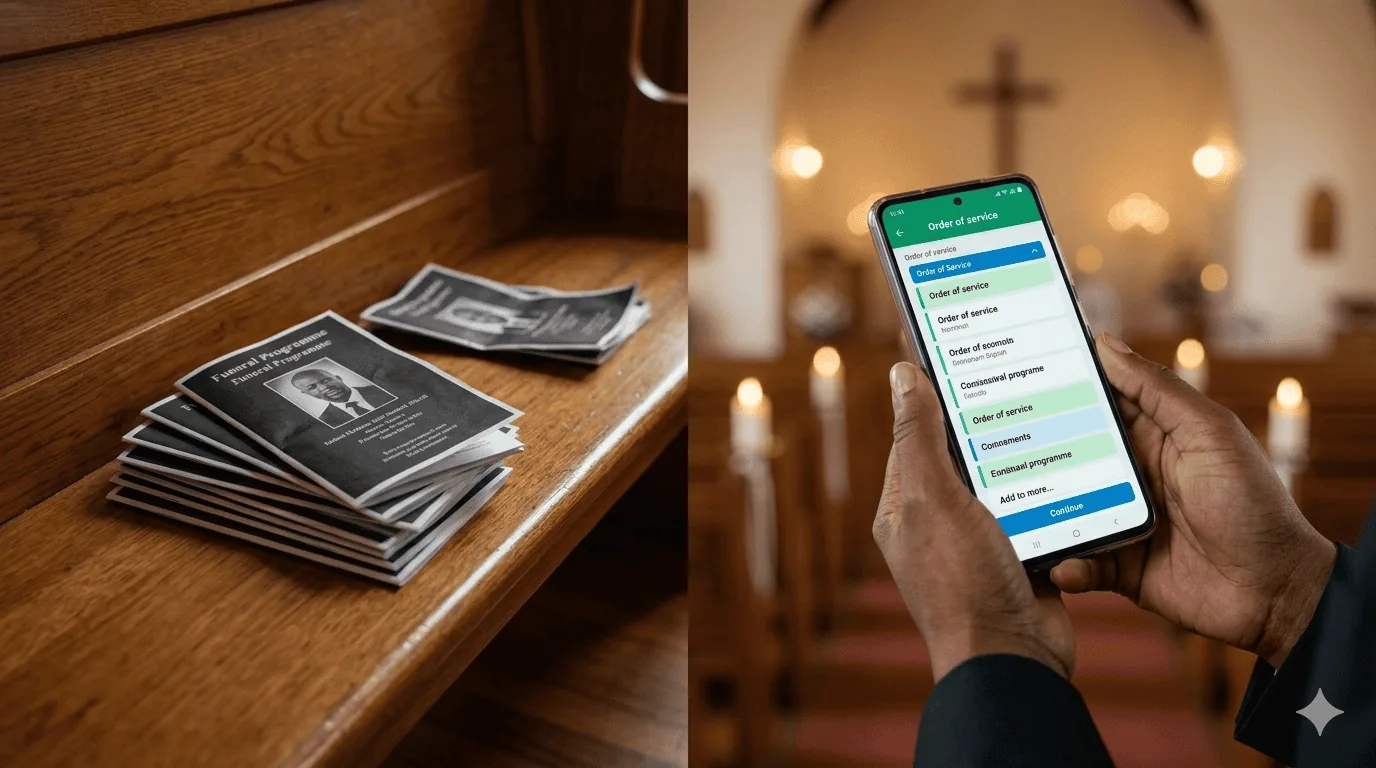
The traditional printed order of service has served families for generations — but it has real limits. Programmes must be printed days in advance, which means last-minute changes are impossible. They run out. They get left behind on chairs. Family joining from another city or country never receive one. And when the service runs over time or an item is changed on the day, nobody knows.
A digital programme solves every one of these problems:
- It lives on every guest's phone — no printing, no distribution
- It updates in real time as the director advances through each item
- Family watching from anywhere in the world can follow along, not just those physically present
- Last-minute changes — a different speaker, a song removed — are instant
- The MC always knows exactly what comes next without looking at paper notes
- Progress is visible: guests see exactly how far through the service they are
Above all, a well-run service is a gift to the family. When the programme flows smoothly, people can give their full attention to honouring the person who has passed — rather than wondering what happens next or watching the MC shuffle through papers.
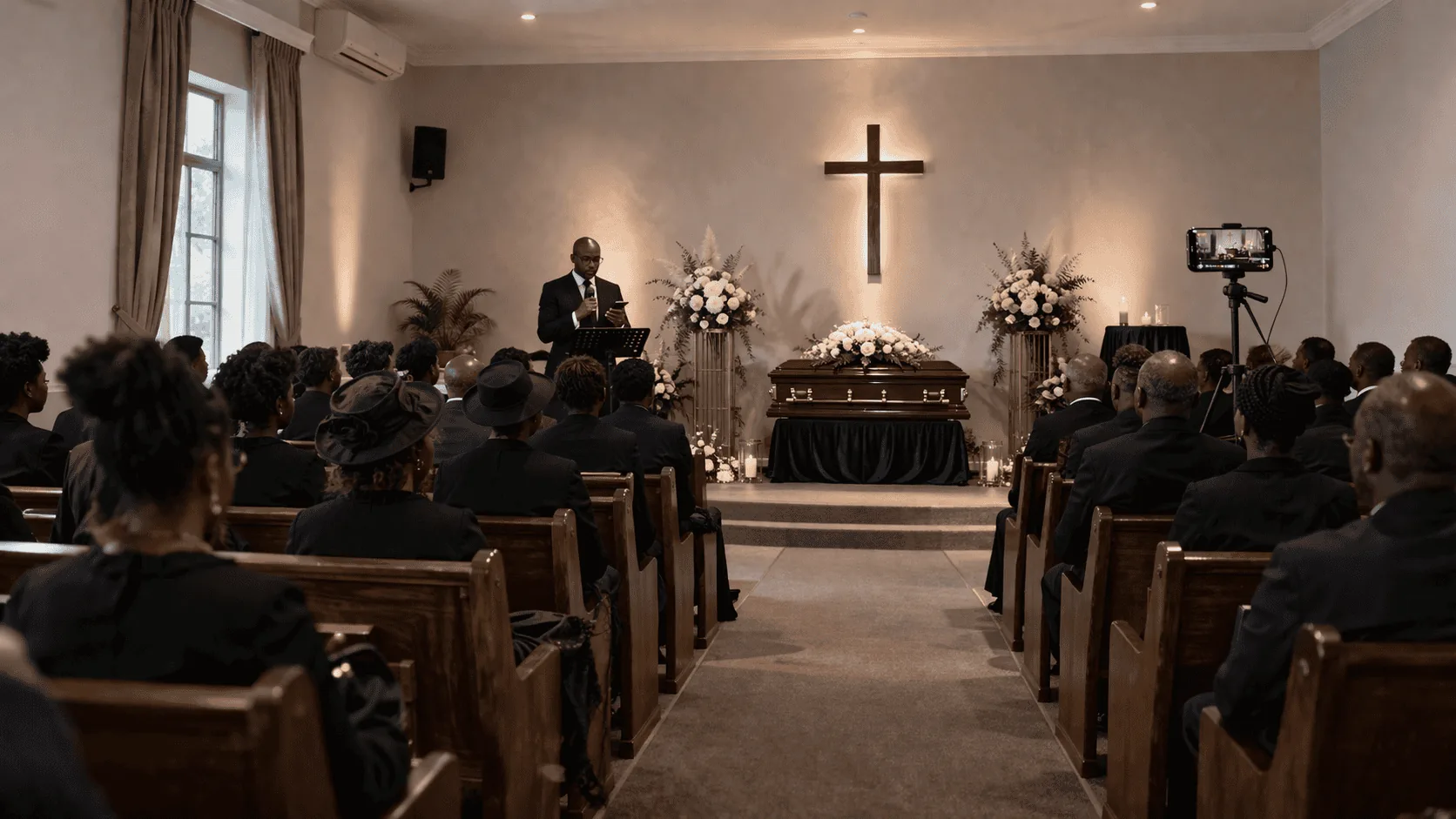
South African funerals often run long and include many contributors — family tributes, church readings, choir, community speakers. A digital programme is especially valuable here because the director can silently advance items from their phone without interrupting the service, and the audience always knows where they are in a 2- or 3-hour programme.
The Programme Builder — Building Your Order of Service
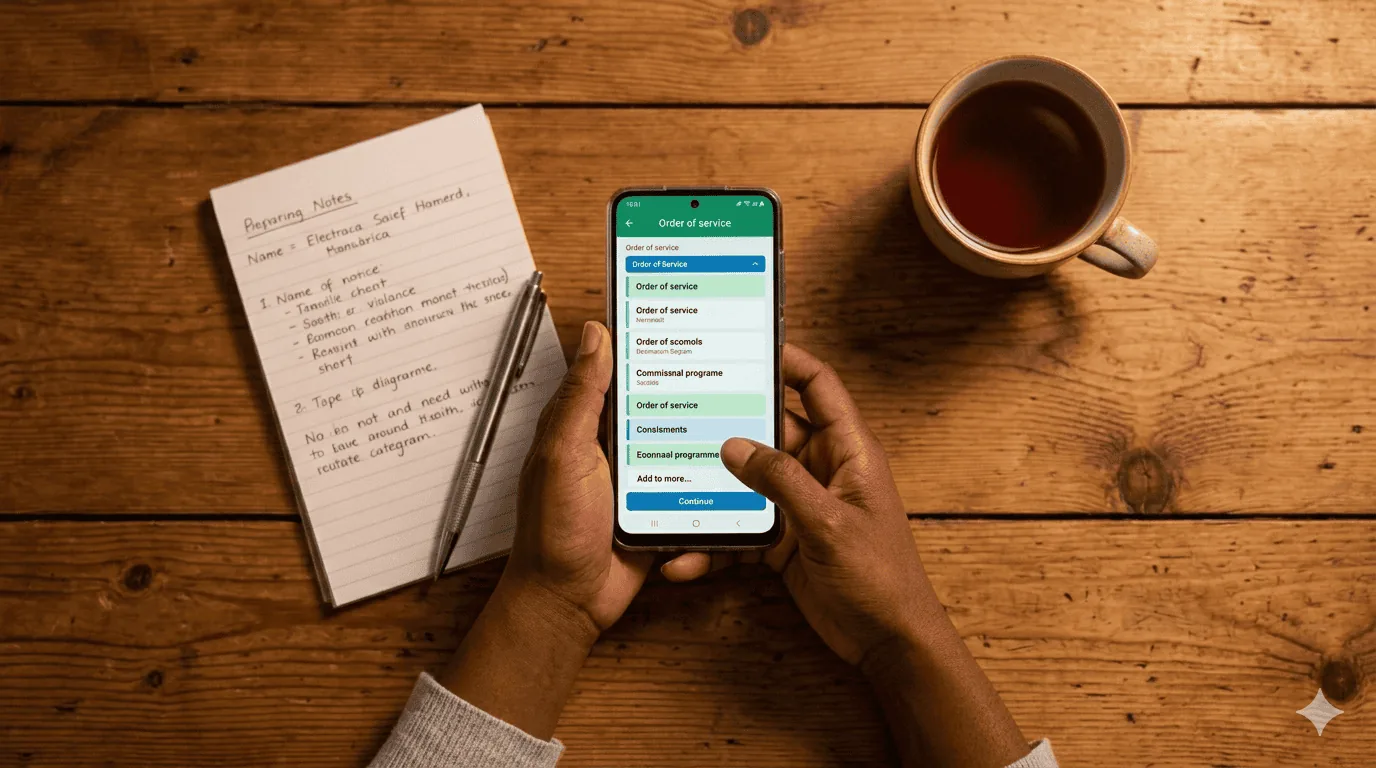
The Programme Builder is where you create the order of service before the day of the funeral. You access it from your tribute's edit page — look for the Programme button, which takes you to the full programme management page. The builder is the Edit Programme tab.
Each row in the builder represents one part of the service. You can add as many items as you need, reorder them by dragging, and group them into sections. Everything saves automatically as you work, and you can come back to make changes at any time — even on the morning of the service.
The start time
At the top of the builder you will find a Start Time field. Enter the time the service is due to begin (for example, 10:00). TributePoint uses this together with each item's duration to display calculated times throughout the programme. You will also see a Total Duration counter updating as you add items, so you can immediately see if the service is running longer than expected.
Every Field Explained
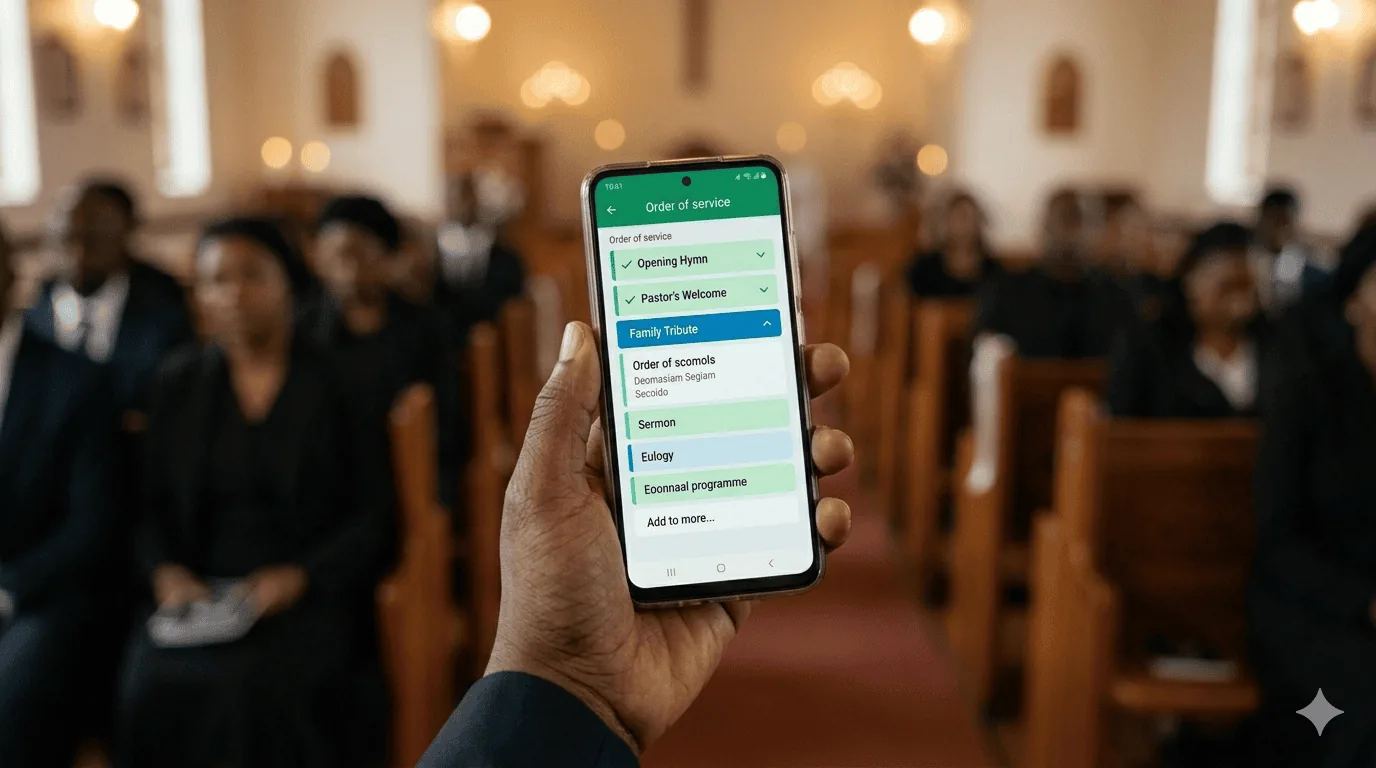
When you add a programme item, you fill in up to four fields plus an optional director's note. Here is exactly what each one means and how to fill it in.
Time
The scheduled time this item is expected to start — for example 10:00 or 14:30. You can set times manually, or leave them blank and let TributePoint calculate them automatically from the Start Time and each item's duration. This time appears in the audience view so guests can plan around the service.
Activity
The name of this part of the service — for example Opening Prayer, Scripture Reading, Family Tribute, Choir, Eulogy, Committal. Keep it short and clear. This is the main text visible to both the director and the audience. This is the only required field.
Person
Who is responsible for this item — the name of the speaker, officiant, choir, or reader. For example Pastor Sithole, Nomsa Khumalo, St. Mary's Choir. This is optional but very useful: the director sees at a glance who needs to come forward, and the audience can see which speaker is currently on.
Duration (minutes)
How long this item is expected to take, in minutes — for example 5 for a short prayer, 15 for a eulogy, 10 for a hymn. TributePoint uses this to calculate the running total duration of the service and, if you have set a Start Time, the expected start time of each subsequent item. It also gives the director a sense of pacing on the day.
Director's Note (private)
A private reminder visible only to the person running the service — never shown to the audience. Use this to remind the director of something specific: "Ask Nomsa to stand by at item 3", "Confirm microphone handover before this item", or "Pause here for the pallbearers". To reveal the note field, tap the small + Note toggle on each item row.
You can drag any item to a new position using the drag handle on the left of each row (the six-dot icon). On mobile, press and hold the handle, then drag. The order numbers update automatically. Changes are saved when you tap the Save button.
Section Headings — Organising the Service
A long service can be hard to follow when all the items are in a single flat list. Section Headings let you divide the programme into named parts — giving both the director and the audience a clear map of the entire service.
Typical examples for a South African Christian funeral might be:
- Part 1 — Arrival & Welcome
- Part 2 — Scripture & Readings
- Part 3 — Tributes
- Part 4 — Message & Sermon
- Part 5 — Committal & Recessional
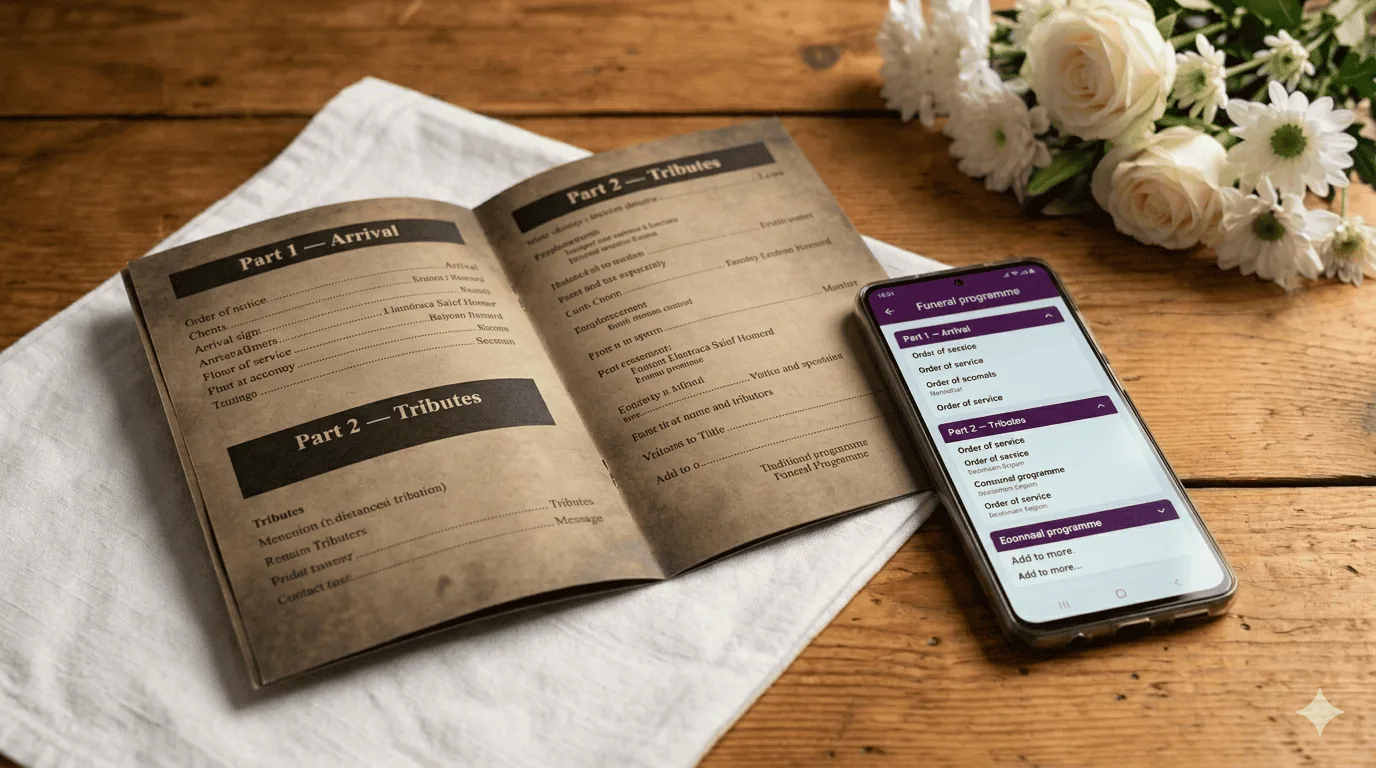
To add a section heading, tap the + Section button at the bottom of the builder. A heading row will be added — give it a name, then drag it to the right position. Headings are shown in purple in the audience view, grouping the items beneath them into a visual card. They do not count as programme items — the director never needs to "complete" a heading.
Paste Mode — Import from WhatsApp or Word
Many families already have a programme written out in a WhatsApp message, a Word document, or a printed sheet. Instead of retyping everything item by item, you can use Paste Mode to import it all at once.
Tap the Paste Text button at the bottom of the builder. A text box will appear. Simply paste your raw programme text — one item per line — then tap Convert to Items. TributePoint will intelligently parse the text and create programme rows automatically.
For best results, structure your pasted text like this:
10:05 Welcome — MC Thabo Dlamini (10 min)
10:15 Song: Abide With Me — St. Mary's Choir
10:25 Scripture Reading — Deacon Khumalo
10:30 Family Tribute — Nomsa Khumalo (15 min)
10:45 Eulogy — Pastor Sithole (20 min)
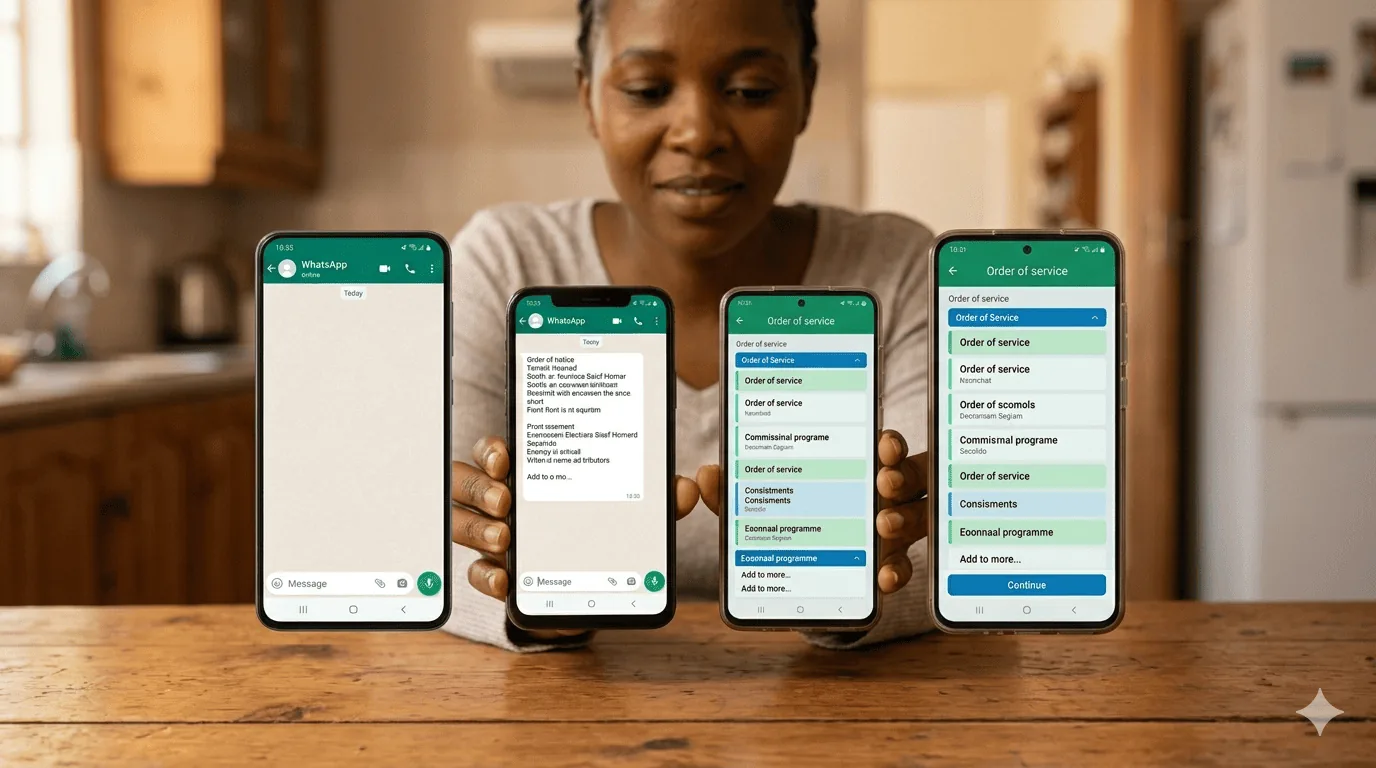
Even if your original text is less structured — a simple list without times — TributePoint will still import each line as a separate activity and you can fill in the times and durations afterwards.
The Director View — Running the Service
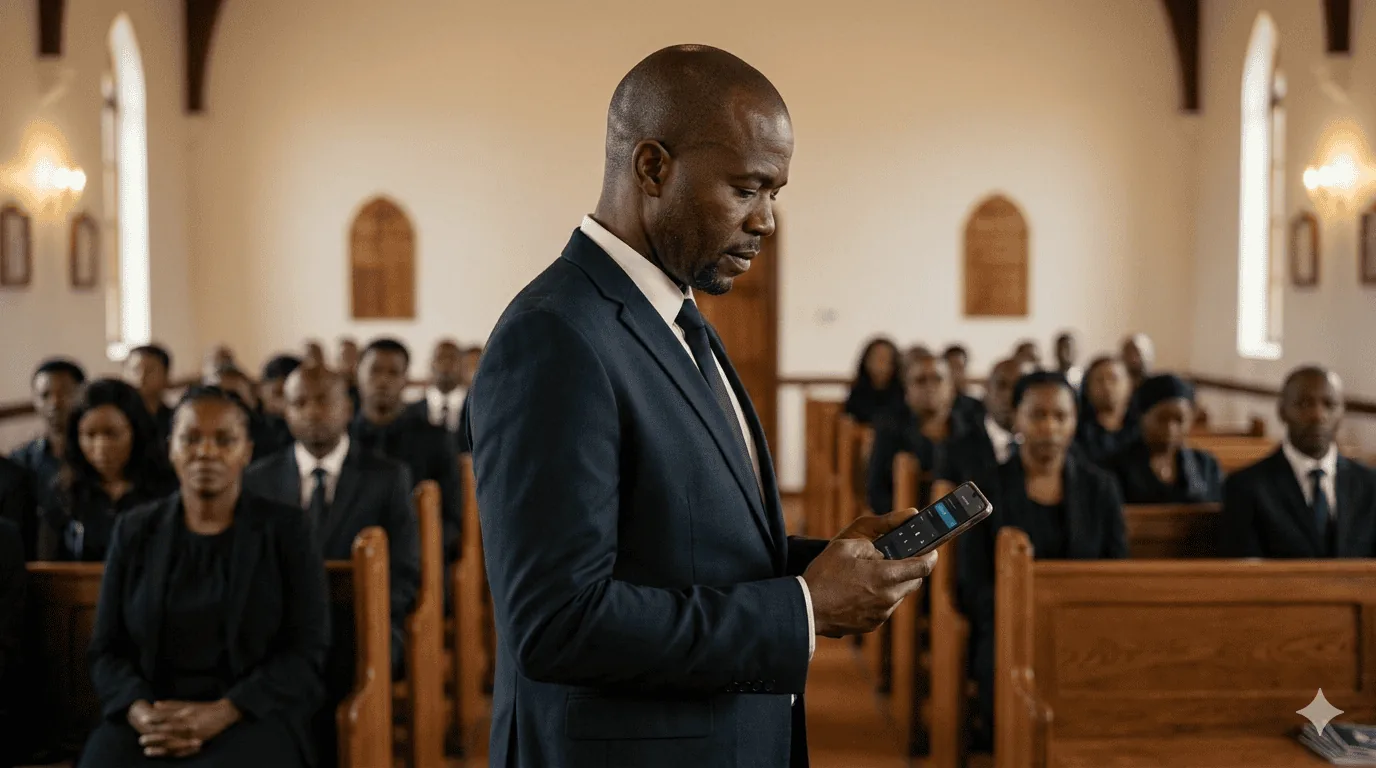
The Director View is the tool you use on the day of the service to run the programme in real time. It is the Live Control tab on the programme page. On mobile, this is designed to be used comfortably with one hand — the director can hold their phone and advance the programme without any fuss.
Now In Progress panel
At the top of the director view is a "Now in progress" panel showing the current programme item in large, clear text — including the person responsible. This gives the director an instant at-a-glance view of where the service is without having to scan a list.
Start Programme
The green Start Programme button begins the programme. It marks the first item as "in progress" and activates the audience view. Tap this when the service officially begins.
Done & Next
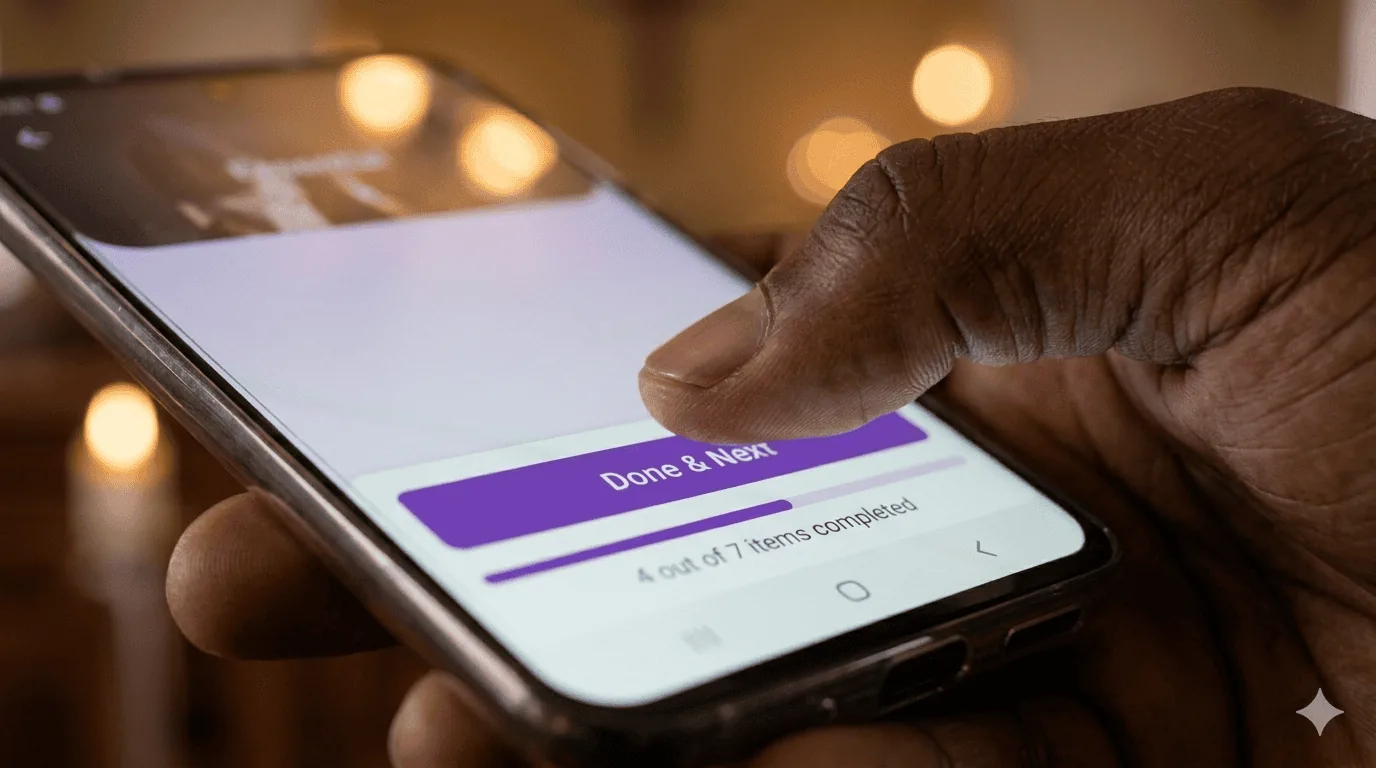
The purple Done & Next button marks the current item as completed and moves to the next one. Tap this at the end of each part of the service.
Tap Any Item
You can tap any item in the list to jump directly to it — useful if the service runs ahead of schedule, an item is skipped, or you need to go back to something.
Reset
The Reset button at the bottom returns all items to "pending" and clears the progress. Use this only if you need to start the entire programme over from the beginning.
The progress bar
Beneath the current item panel is a progress bar showing how many items have been completed out of the total — for example 3 / 8 done. Both the director and the audience see this bar filling up as the service progresses, giving everyone a clear sense of pacing.
Sharing the audience link
At the bottom of the director view is a Copy Audience Link button. This copies the public, read-only link to the audience view — the page your guests open on their phones to follow the programme. Share it via WhatsApp before the service begins.
Item Status — Pending, In Progress, Completed
Every programme item has one of three statuses. Understanding these will help you follow what is happening both as a director and as a guest.
Pending
This item has not started yet. It appears with a grey numbered circle. Both the director and audience can see it is coming up.
In Progress
This item is currently happening. Shown with a pulsing blue/purple circle and highlighted row. The audience view shows this item prominently at the top.
Completed
This item has finished. Shown with a green tick and strikethrough text. It fades slightly in both views so the focus moves forward.
At any given time, only one item can be "in progress". Tapping a pending item in the director view sets it as current. Tapping a completed item reactivates it — useful if you need to return to something unexpectedly.
The Audience View — What Guests See
The audience view is a separate, public-facing page that any guest can open on their phone. It shows the programme in a clean, light design with no controls — guests can watch the progress but cannot make any changes.
The audience view shows:
- The name of the deceased, service date, and programme director's name
- A progress bar showing how far through the service the programme is
- All programme items, grouped into sections if you have added headings
- The current item highlighted in pulsing blue — always visible at a glance
- Completed items ticked off in green with strikethrough text
- Scheduled times for each item so guests know when to expect each part
The audience view updates automatically every 5 seconds — so when the director taps "Done & Next", all guests on their phones will see the programme advance within seconds. There is no need to refresh.
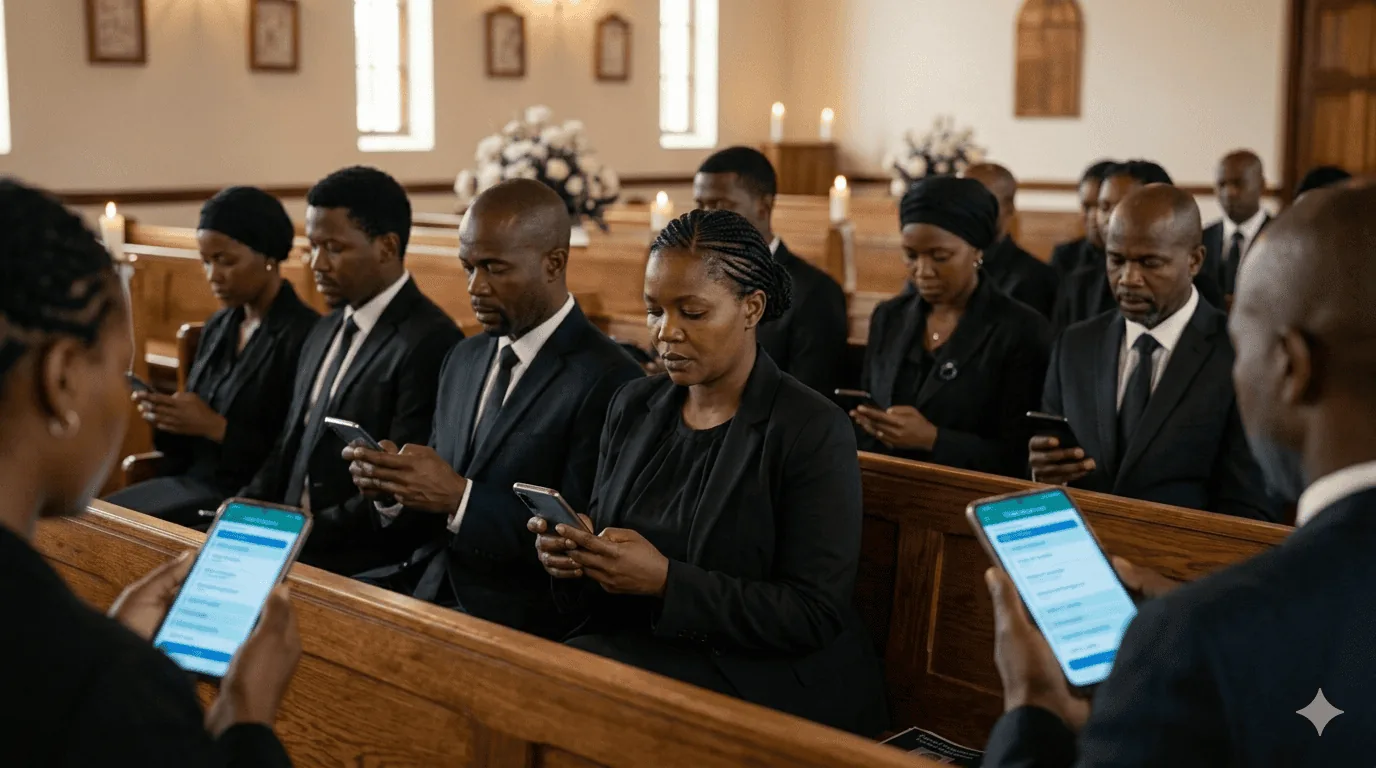
In the director view, tap Copy Audience Link at the bottom of the screen. Then paste it into a WhatsApp message and send it to the family group, the funeral notice, or the tribute page. Guests tap the link, and the live programme opens immediately in their browser — no sign-in, no app download required.
Director PIN — Giving the MC Access
In many services, the person running the programme on the day is the MC (Master of Ceremonies) or the officiating minister — not the family member who created the tribute on TributePoint. The Director PIN feature solves this cleanly.
The owner of the tribute can set a PIN of 4 or more characters in the Settings tab of the programme page. The MC is then given two things:
- The programme page link (for example tributepoint.co.za/program.php?id=123)
- The PIN
When the MC opens that link on their own phone, they see a PIN entry screen. They type the PIN — and instantly they have the full director view with all controls. No TributePoint account is required.
The PIN session lasts 7 days, so the MC stays logged in across the morning of the service even if they close and reopen the page. The tribute owner can change or remove the PIN at any time from the Settings tab.
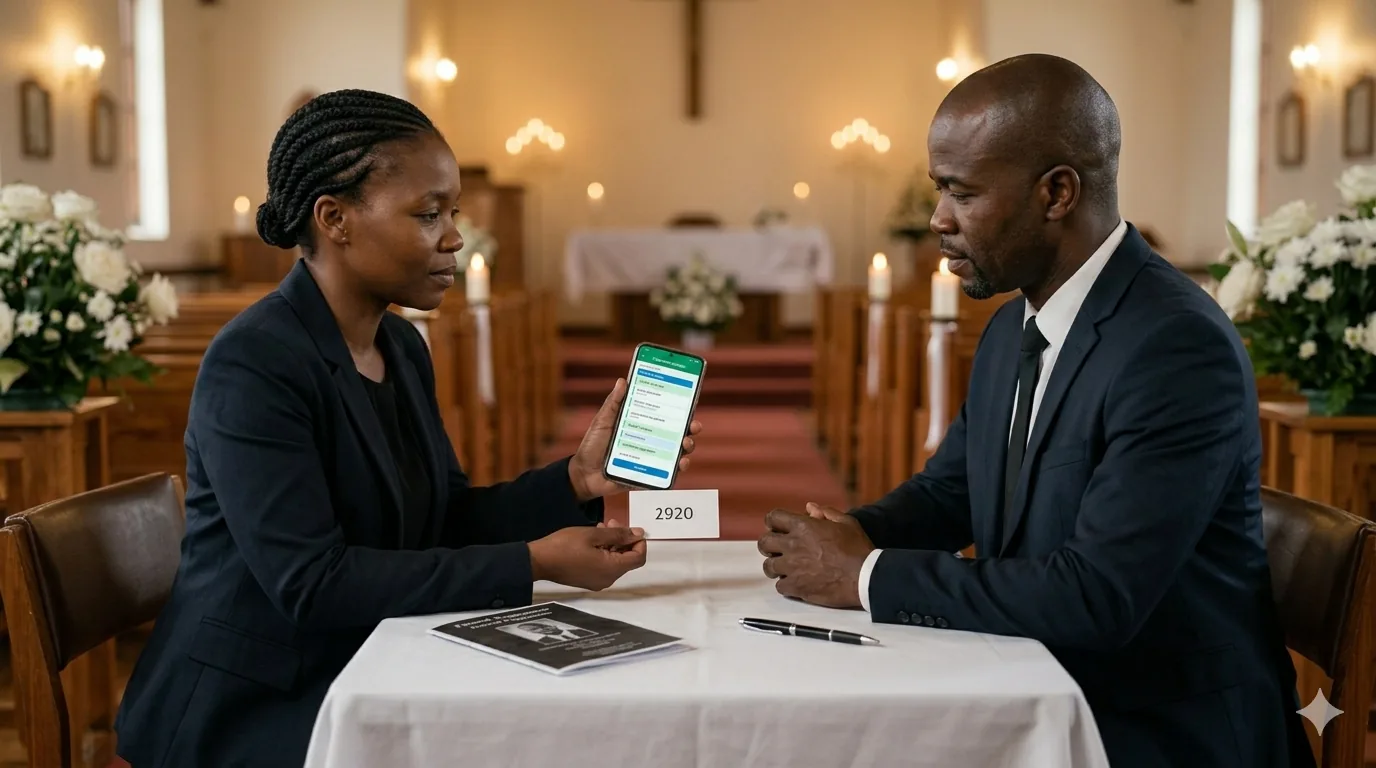
The Director PIN grants access to the director view only — not the full TributePoint account, tribute editing, or any other tributes. It is specifically scoped to running the programme for one service. The PIN is stored as a secure cryptographic hash, never as plain text.
Private Director Notes
The Notes tab in the programme page gives the director a private scratchpad — a free-form text area that auto-saves as you type. Notes are completely private and never visible to the audience.
Use this space for things like:
- Names and contact numbers of speakers
- Reminders — "Confirm pallbearer positions before the committal"
- Cue notes — "Signal choir 2 minutes before item 6"
- Any last-minute information you need on the day
In addition to this shared notes area, each individual programme item has its own director note field (the small + Note toggle when building items). These per-item notes appear in the director view when that item is active — a perfectly timed private prompt at exactly the right moment.
Step-by-Step: From Builder to Running the Service
Open the Programme page from your tribute
Go to your tribute's edit page and tap the Programme button. This opens the programme management page with four tabs: Live Control, Edit Programme, Notes, and Settings.
Set your start time
In the Edit Programme tab, find the Start Time field at the top and enter the time the service begins. This drives the automatic time calculations across all items.
Add your programme items
Tap + Add Item for each part of the service. Fill in the Activity name, the Person responsible, the Duration, and an optional Time. You can drag items to reorder them at any time.
Add section headings to divide the service
Tap + Section to insert a heading row. Name it (e.g., Part 1 — Welcome) and drag it to the right place. Headings group your items in the audience view and make long services easy to navigate.
Set a Director PIN (if needed)
Open the Settings tab and create a PIN for the MC. Share the programme link and PIN with them so they can access the director view on their own phone without an account.
Share the audience link before the service
In the Live Control tab, tap Copy Audience Link and send it via WhatsApp to family and guests. They open it in their browser and will see the programme update live during the service.
On the day — tap Start Programme
When the service begins, open the Live Control tab and tap the green Start Programme button. The first item becomes active and the audience view shows it as "in progress".
Advance through each item with Done & Next
As each part of the service ends, tap the purple Done & Next button. The completed item ticks off in green on every phone in the room, and the next item lights up. Continue until the final item is marked complete and the service is done.
Ready to build your programme?
Create a tribute on TributePoint and open the Programme Builder — it is included on every tribute, free of charge. No printing, no confusion, just a dignified service from start to finish.
Create a Tribute FreeFrequently Asked Questions

Kabelo Ndlovu is TributePoint's Product Education Lead. He explains TributePoint's digital memorial, livestreaming, programme, donation, and funeral-home tools in clear, practical language for families and funeral professionals.
Also helpful: Create a TributePoint memorial page when you are ready to share service details, or explore more practical support in our South African funeral guides.